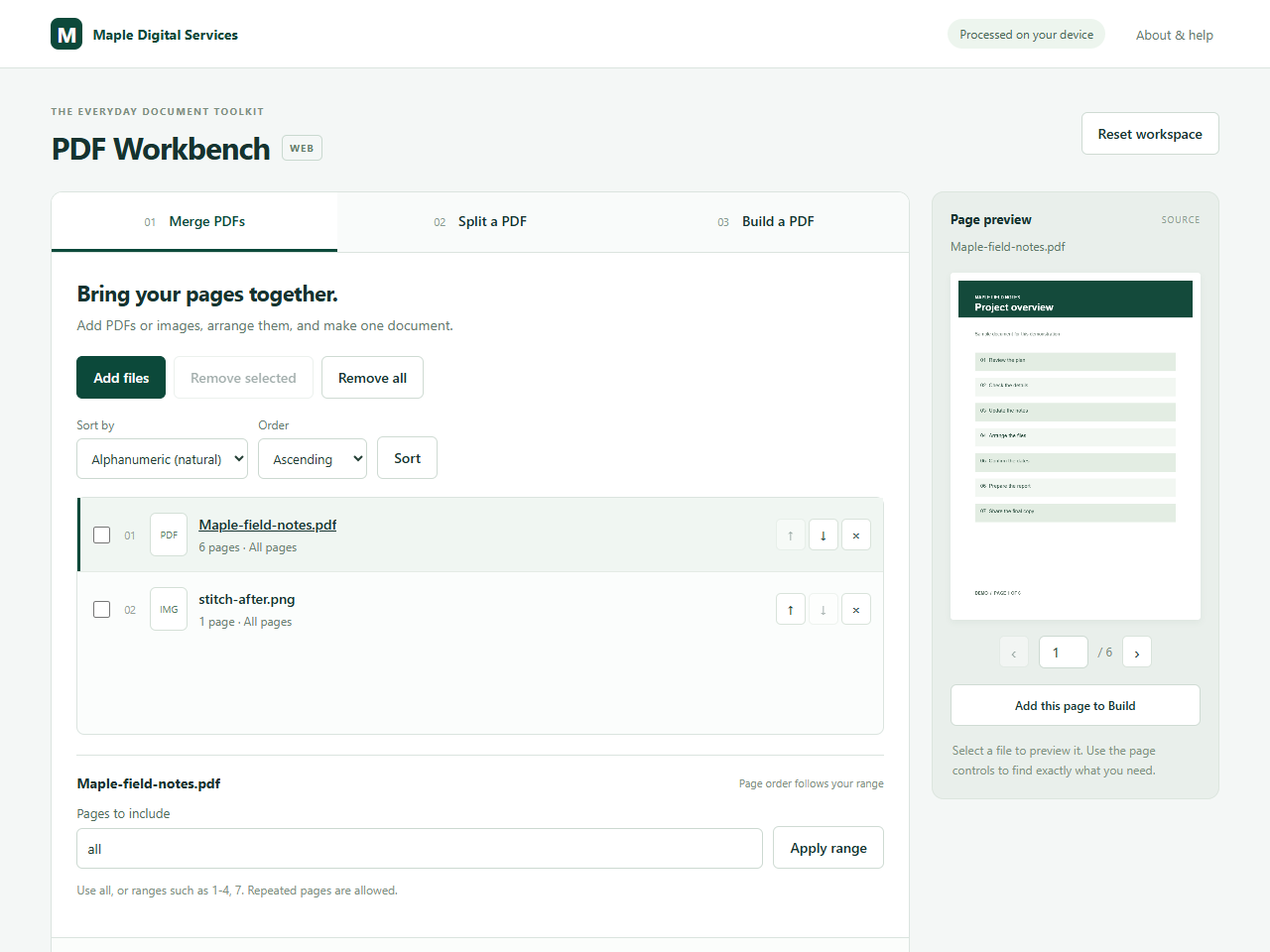
Extract selected pages
Open your PDF
In Split a PDF, click Add files and choose one PDF. You can also drop it into the file area.
Find the pages
Select the document and use the page preview on the right. The page number is its position in the PDF, which may differ from a number printed on the page.
Choose how to split
Under How would you like to split?, select Extract selected pages. Enter a range such as
2-5, 9. This saves pages 2, 3, 4, 5 and 9 in that order.Check the plan
Click Preview parts. Confirm that the listed pages are the ones you want. Change the range and preview it again if needed.
Download the result
Enter an output filename and click Split & download. One part downloads as a PDF. Several parts download together in a ZIP file.
Check the saved pages
Open the output to confirm its contents. If you downloaded a ZIP, extract it first. Save the result before resetting the workspace or closing the tab.
Other ways to split
- Every N pages: choose a number such as 3 to make groups of three pages. The final part may be shorter.
- One file per page: save each page as its own PDF.
- Split at page numbers: enter the pages where new parts should begin. For a 12-page document,
4, 9makes parts 1–3, 4–8 and 9–12.
A few limits
Split works with one PDF at a time. Password-protected PDFs are not supported, and the total source-file limit is 200 MB per session. Complex forms, bookmarks, attachments and digital signatures may not be preserved.
To combine selections from several files, use Build a PDF. Add your sources, choose the pages from each one and click Add selection. You can also choose to download each selection separately.