Make your PDF
Add your files
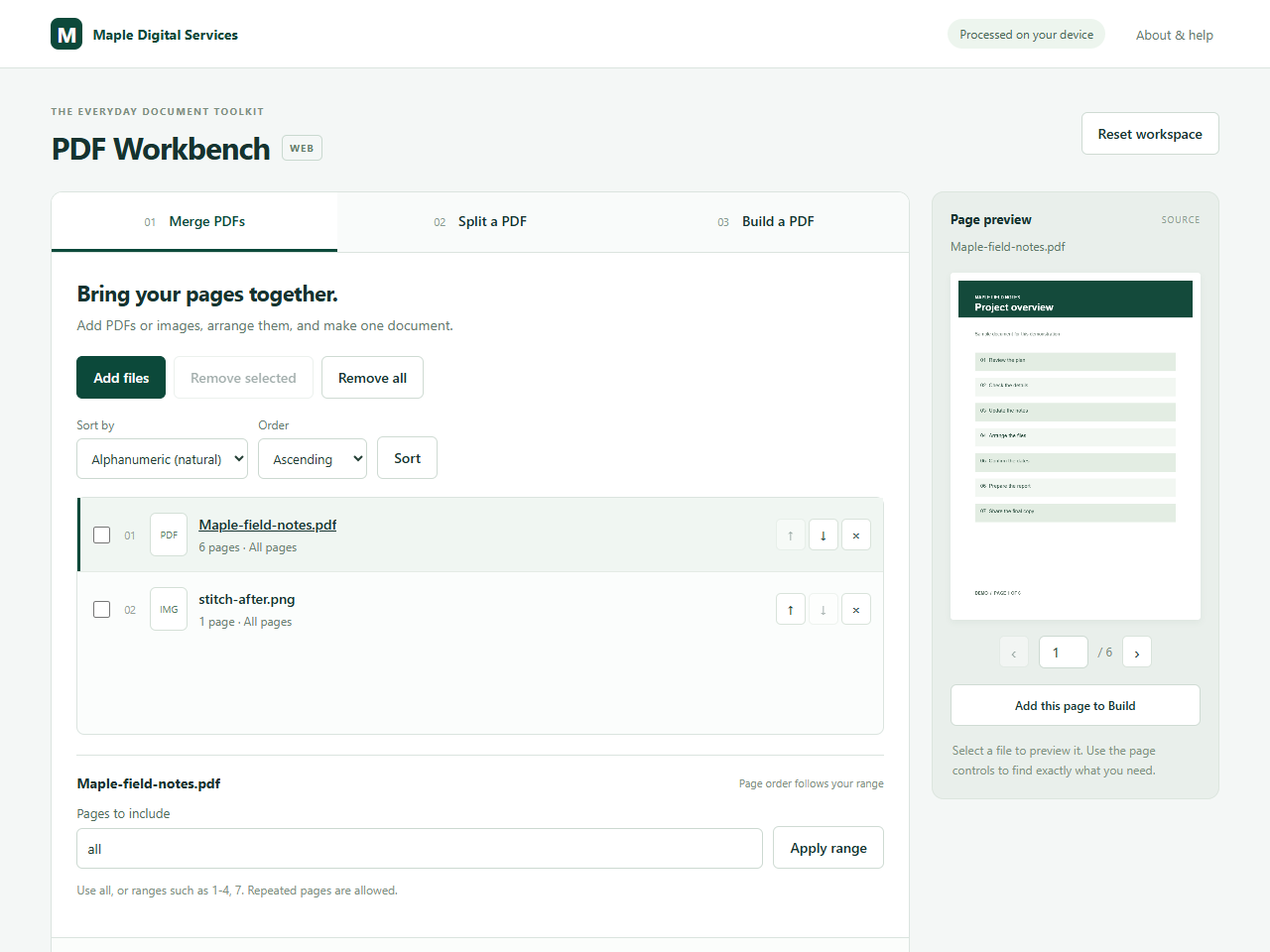
Open Merge PDFs and choose Add files. Select PDFs, JPGs, PNGs or BMPs. You can also drop them into the file area.
Set the order
Drag a row or use its up and down arrows. For a long list, choose a Sort by option and an Order, then click Sort. Alphanumeric sorting puts names such as page2 and page10 in number order.
Choose pages from a PDF
Select its row. Leave the page range as
all, or enter a range such as1-3, 7and click Apply range. The pages follow the order you enter.Fit any images to the page
Select an image row to choose A4, Letter or Image size. Set the orientation and margins. Use Rotate image 90° if needed. The image is fitted without cropping.
Check the list and preview
Use the page controls on the right to inspect each source. Remove unwanted rows with the × button, or select their checkboxes and choose Remove selected.
Save the combined file
Enter an output filename and click Merge & download. Open the downloaded PDF and check the page order. Your original files are unchanged.
Before you start
- The web edition allows up to 200 MB of source files per session. Large files may still exceed your browser’s memory.
- Password-protected PDFs are not supported. Use an unlocked copy you are allowed to edit.
- Forms, bookmarks, attachments and digital signatures may not survive page assembly. Check important documents after export.
- Files and edits are kept in this tab’s memory. Download your result before resetting or closing the tab.
Need pages from several documents in a more specific order? Open Build a PDF, choose a source and a page range, then click Add selection. Repeat for each section.